Checks to try first
- Save any text you do not want to lose.
- Refresh the page and repeat the action once.
- Confirm required fields are complete and any selected totals agree.
- Check that your role permits the action.
- For generation problems, confirm the bank contains enough matching questions.
- For imports, return to the review step and inspect excluded or incomplete rows.
Create a useful support ticket
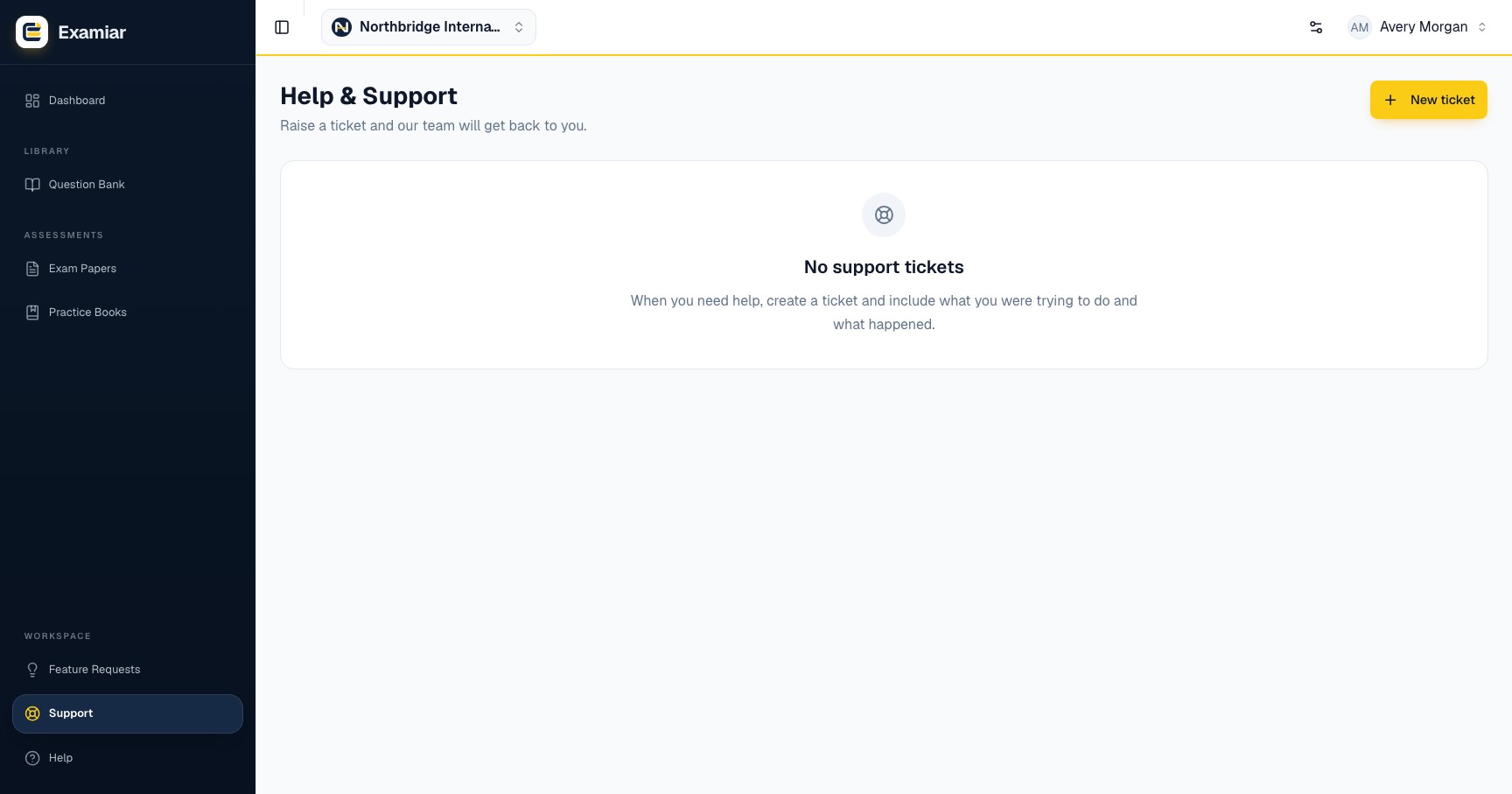
Open Support, choose the closest category and describe:
- what you were trying to achieve;
- the page or workflow step;
- what you expected;
- what happened instead;
- the exact error message, if one appeared;
- whether the issue repeats.
Do not include passwords, verification codes, full question-bank exports or sensitive learner data.
Replies and ticket status
Replies are stored inside Examiar. Email notifications are also sent for new tickets and replies; the interface reports whether the notification was accepted by the mail service. Delivery to a particular inbox can still depend on the recipient’s mail provider and spam filtering.
- Open
- The issue needs attention.
- Pending
- Support has replied and may be waiting for more information.
- Resolved
- A solution or answer has been provided.
- Closed
- The conversation is complete.
Suggest a product improvement
Use Feature Requests for an idea or workflow improvement rather than a fault that needs troubleshooting. Describe the problem, who encounters it and the outcome you want. Do not include confidential question content, passwords or learner data.
Other help resources
Use the documentation home to find workflow instructions. For service availability, check the status page. For product changes, read the changelog.
Open the relevant workspace area and put this guide into practice.