Prepare before uploading
- Complete the relevant curriculum, topics and question profiles first.
- Remove duplicate, obsolete or unauthorised questions from the source file.
- Keep question wording, answer choices and correct answers unambiguous.
- Import one coherent subject or collection at a time so review stays manageable.
Excel or spreadsheet import
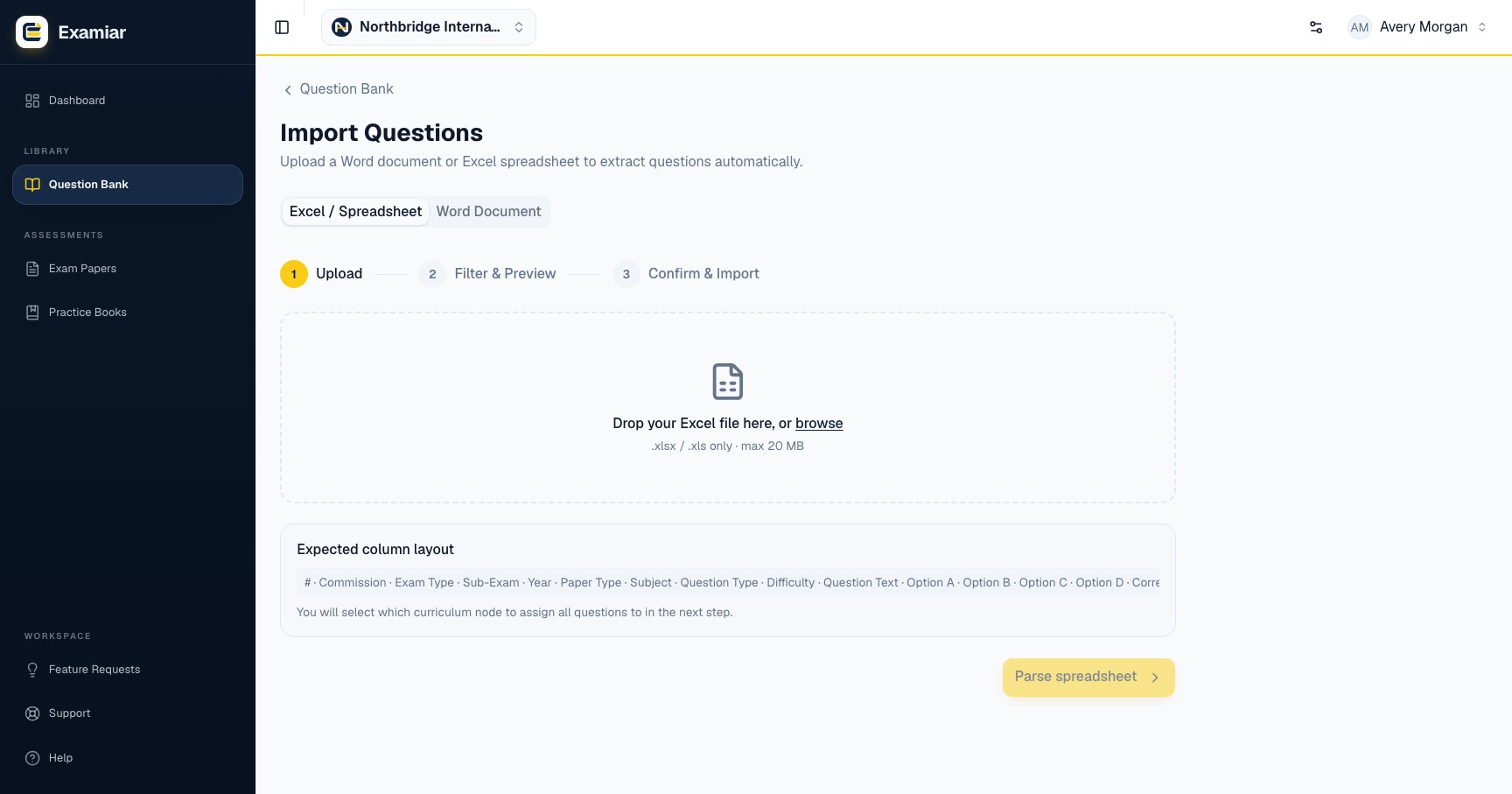
- Open Import Word / Excel and choose the spreadsheet flow.
- Upload the file.
- Select the curriculum to assign to the imported rows.
- Use the preview and filters to inspect what Examiar detected.
- Correct or exclude unsuitable rows.
- Confirm only after checking the questions and answers.
For bulk paste, the supported working columns are Question, A, B, C, D, Correct, Curriculum and Difficulty. The bulk creator accepts up to 100 rows at a time.
Word import
- Choose the Word flow and upload the document.
- Review the extracted questions.
- Map curriculum globally or adjust it for individual questions.
- Edit extracted details and exclude anything that should not enter the bank.
- Confirm the final set.
Verify after import
Open the question bank and filter to the imported curriculum. Spot-check question text, options, correct answers, marks and classification. A successful upload is not the same as a reviewed question bank.
Continue in Examiar
Open in ExamiarOpen the relevant workspace area and put this guide into practice.